
The short answer
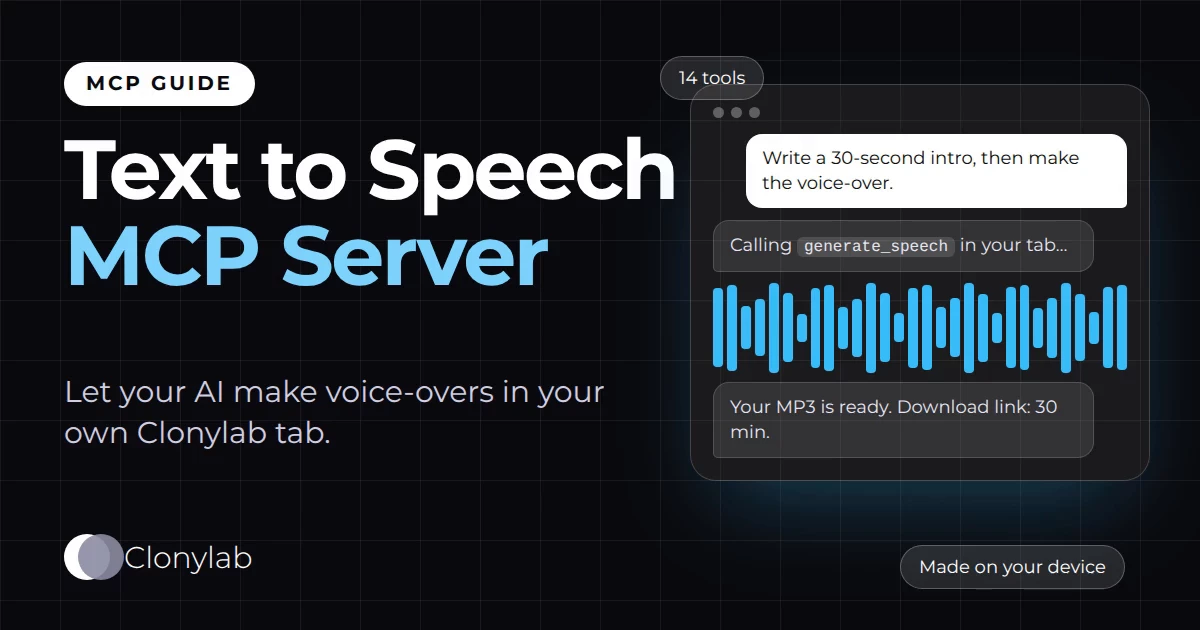
A text to speech MCP server lets an AI app turn text into speech by calling tools you have allowed. Clonylab’s server gives your AI 14 tools: it can pick a voice, make a voice-over, check progress and fetch the MP3. Your own open Clonylab tab makes the audio. It needs Pro or Team.
Key takeaways
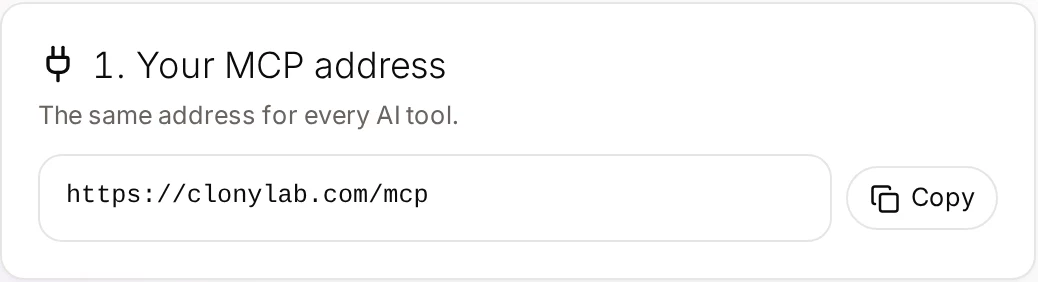
- MCP is an open standard that lets AI apps use outside tools. Clonylab’s MCP address is https://clonylab.com/mcp.
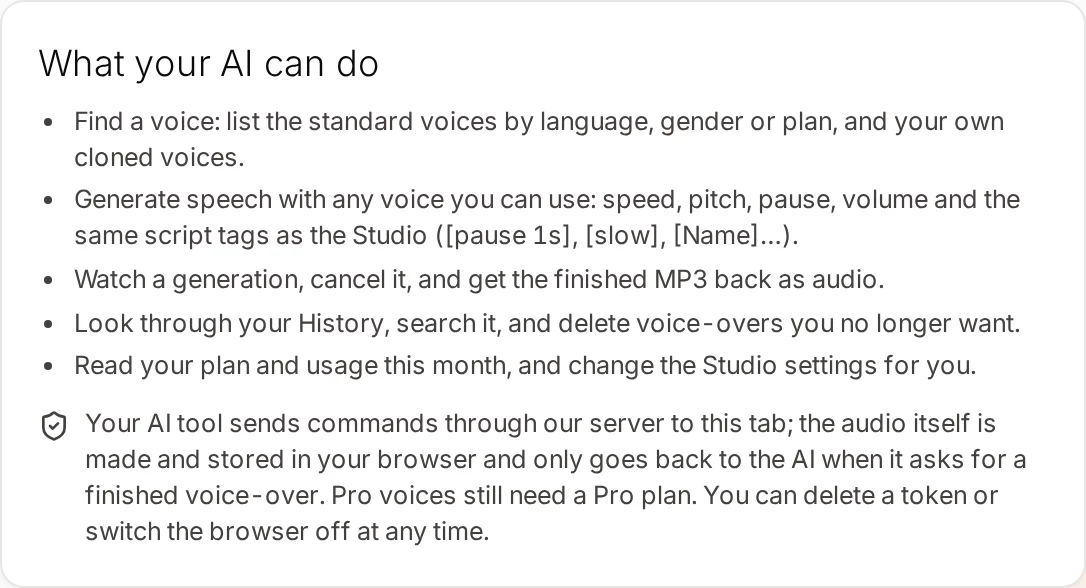
- Your AI gets 14 tools for voices, speech jobs, History, Studio settings and usage.
- The audio is made inside your open Clonylab browser tab, on your own device.
- You connect with a sign-in (Claude, ChatGPT) or with a token (Claude Code, Cursor, Codex, Gemini CLI).
- The AI connection is part of Pro and Team. It is English only, and it uses cloned voices you made in Clonylab; it cannot create a new clone.
01What is a text to speech MCP server?
Start with the plain version. MCP stands for Model Context Protocol. It is an open standard that gives AI apps one common way to use outside tools. Think of a standard plug. Once an app has the plug, any tool with the matching socket works, and nobody has to build a custom connection for every pair of apps.
A text to speech MCP server is the tool on the other end of that plug. It offers actions such as “list the voices”, “turn this text into speech” or “show me my last voice-over”. Your AI reads that menu, decides which action fits your request, and calls it for you. People also search for the same thing as a TTS MCP server, an MCP text to speech server, MCP voice generation or an AI voice MCP.
Here is a small scene. You ask your AI to write a 60-second script for a product video. Normally you would copy the script, open a voice tool, paste it, choose a voice, press a button and download the file. With a text to speech MCP server you add one more sentence to the same request: “and make the voice-over in a calm US voice.” The AI does the rest.
Clonylab runs one of these servers. It lives at a single address, https://clonylab.com/mcp, and the address is the same for every AI app. If the idea is new to you, the official MCP site has a short introduction, linked at the end of this guide.
02Why let your AI make your voice-overs?
A voice-over is easy to make once. It gets tiring when you make one every week. The slow part is rarely the audio itself. It is the hand-offs: moving text from one app to another, picking settings, saving files and finding them again later.
MCP removes most of those hand-offs. A few jobs where that helps:
- Video creators. Draft the script and get the narration in the same chat.
- Course and training teams. Ask for one lesson script after another and collect the MP3 files as you go.
- Developers. Ask your editor to narrate a code walkthrough or a changelog.
- Product and support teams. Keep a set of how-to clips that your AI can make again when the text changes.
The chart counts what you do yourself in each way of working. It is our own count for one voice-over, not a timing test, and your own numbers will differ.
| Step | By hand in the Studio | With the MCP server |
|---|---|---|
| Write the script | In your AI app | In your AI app |
| Move the text | Copy and paste it yourself | Your AI sends it as part of one tool call |
| Choose a voice | Click through the list | Your AI reads list_voices and picks one |
| Make the audio | Press Generate | Your AI calls generate_speech |
| Check progress | Watch the progress bar | Your AI calls get_job |
| Get the file | Download the MP3 | Your AI gets a download link for the MP3 |
03How the Clonylab text to speech MCP server works
Most text to speech services run on a server and send you the audio. Clonylab works differently, and that shapes how its MCP server behaves.
Your AI app sends a request to the MCP address. Our server checks who you are, then passes the command to your open Clonylab tab. The tab makes the voice-over with the same code the Studio uses and saves it to your History, which lives in your browser. When your AI asks for the finished file, the tab sends the MP3 back and your AI gets a download link.
That is why one rule matters: keep Clonylab open in a browser tab while your AI works. If the tab is closed, the tools that make audio or read your History cannot run. A tool called connection_status lets your AI check this before it starts.
Every speech job has a status: queued, downloading, generating, done, error or cancelled. A long script does not make your AI wait. It gets a job ID straight away and can ask for the status later.
| Thing | Where it is | Why it matters |
|---|---|---|
| Your prompt and script | Your AI app | You choose what to send, as always |
| Sign-in and access tokens | Clonylab server | You can remove an app or delete a token at any time |
| The voice model and the audio | Your open Clonylab tab | The voice-over is made on your own device |
| History and cloned voices | Your browser | They stay in your browser and do not follow you between devices |
| The MP3 download link | Clonylab server | It works for 30 minutes, then it expires |
04The 14 tools your AI gets
The server is not a black box. These are the real tools your AI sees, grouped by what they do. If you have used the Studio, every one of them will feel familiar.
| Tool | What it does | Changes anything? |
|---|---|---|
connection_status | Tells whether your Clonylab tab is connected | No |
account | Shows your email, plan and total characters made | No |
usage_summary | Characters, voice-overs and minutes over 7, 30 or 90 days, with top voices | No |
list_voices | Lists the standard voices by language, gender or plan | No |
list_cloned_voices | Lists the cloned voices you made in Clonylab | No |
generate_speech | Turns text into a voice-over and saves it to your History | Yes |
get_job | Returns the status and progress of a speech job | No |
list_jobs | Lists jobs that are queued or running | No |
cancel_job | Stops a queued or running job | Yes |
list_history | Lists the voice-overs saved in your History, newest first | No |
get_audio | Gives a 30-minute download link for one voice-over as an MP3 | No |
delete_history | Deletes voice-overs from your History for good | Yes |
get_studio_settings | Reads the Studio voice, script and speed, pitch, pause and volume | No |
set_studio_settings | Sets those Studio values, as if you changed them by hand | Yes |
generate_speech takes up to 10,000 characters of text per call. It understands the same script tags as the Studio: [pause 1s], [slow], [fast], [soft], [loud] and [VoiceName] to switch voice partway through. Cloned voices use the ids from list_cloned_voices and work in English only.
get_audio returns a link you can download with a command such as curl. Clips under 1 MB are also attached as audio, so your AI app may be able to play them right in the chat.
Making a voice-over, cancelling a job, deleting from History and changing Studio settings all change something in your account. delete_history removes voice-overs for good. Ask your AI to delete only when you really want a clean-up, and read what it plans to remove first.
05How to set up the Clonylab MCP server in 4 steps
The Connector screen in your account has every value you need, already filled in. The steps below follow that screen.
Get a plan that includes the AI connection
The AI connection is part of Pro and Team. The free trial lets you try the Studio and cloning first, so you can hear the voices before you upgrade.
Copy your MCP address
Open the Connector screen from the side menu. The first card shows the address. It is the same for every AI tool.
Connect your AI app
There are two ways, and the screen shows both.
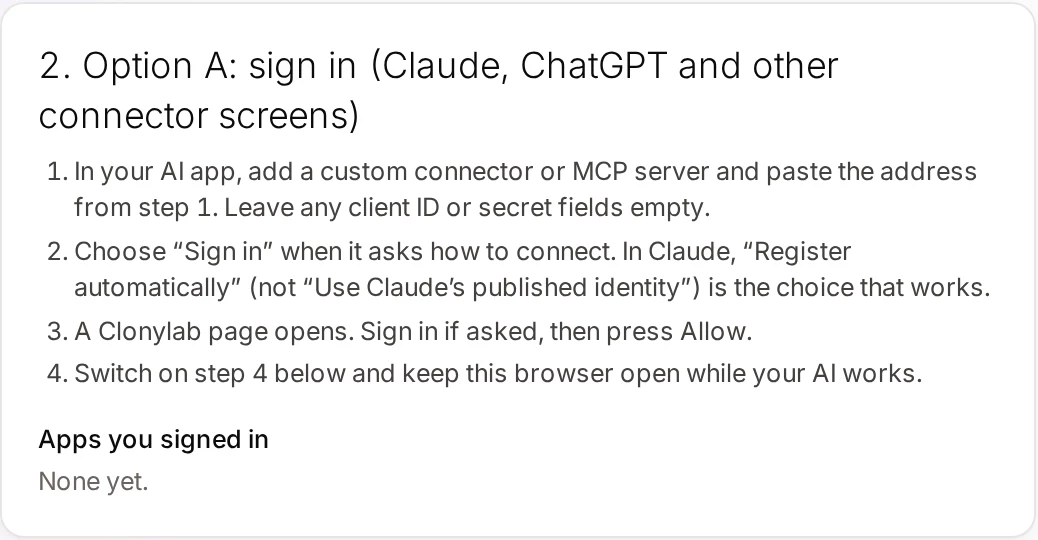
Option A: sign in. For apps with an “add custom connector” screen, such as Claude and ChatGPT. Paste the address, leave any client ID or secret empty, choose “Sign in”, and press Allow on the Clonylab page that opens. In Claude, choose “Register automatically”.
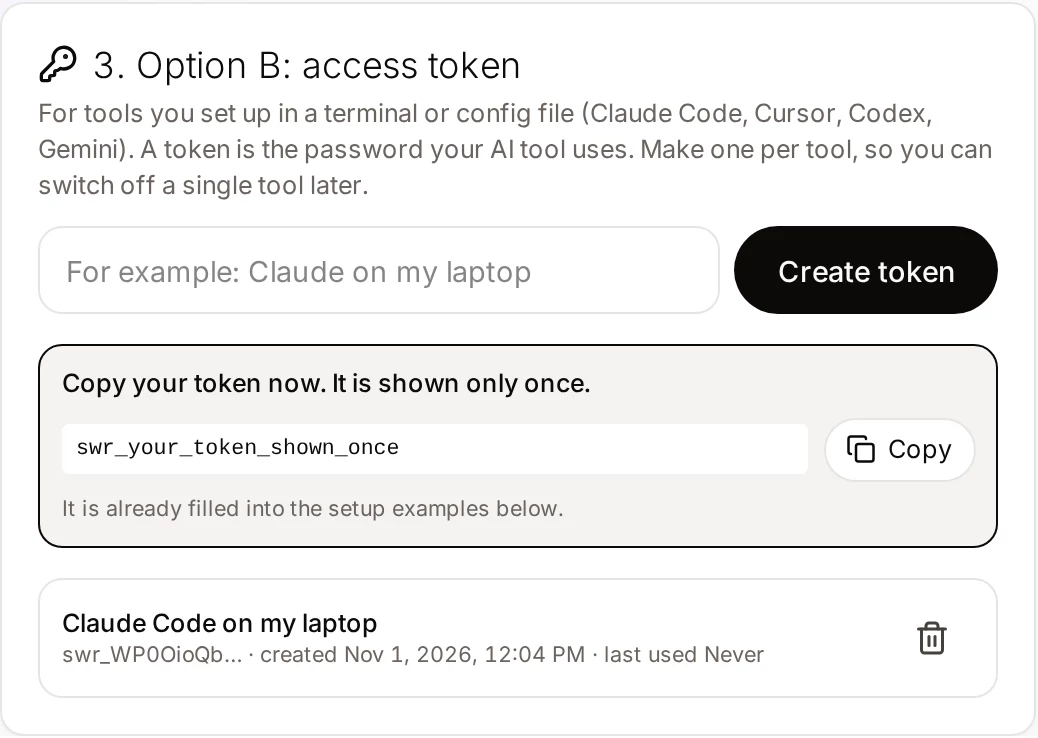
Option B: a token. For tools you set up in a terminal or a config file, such as Claude Code, Cursor, Codex and Gemini CLI. Give the token a name, such as the tool and the computer, and copy it. It is shown only once.
For Claude Code, one command does it:
claude mcp add --transport http clonylab https://clonylab.com/mcp --header "Authorization: Bearer YOUR_TOKEN"Cursor reads a short JSON file. Put this in ~/.cursor/mcp.json:
{
  "mcpServers": {
    "clonylab": {
      "url": "https://clonylab.com/mcp",
      "headers": { "Authorization": "Bearer YOUR_TOKEN" }
    }
  }
}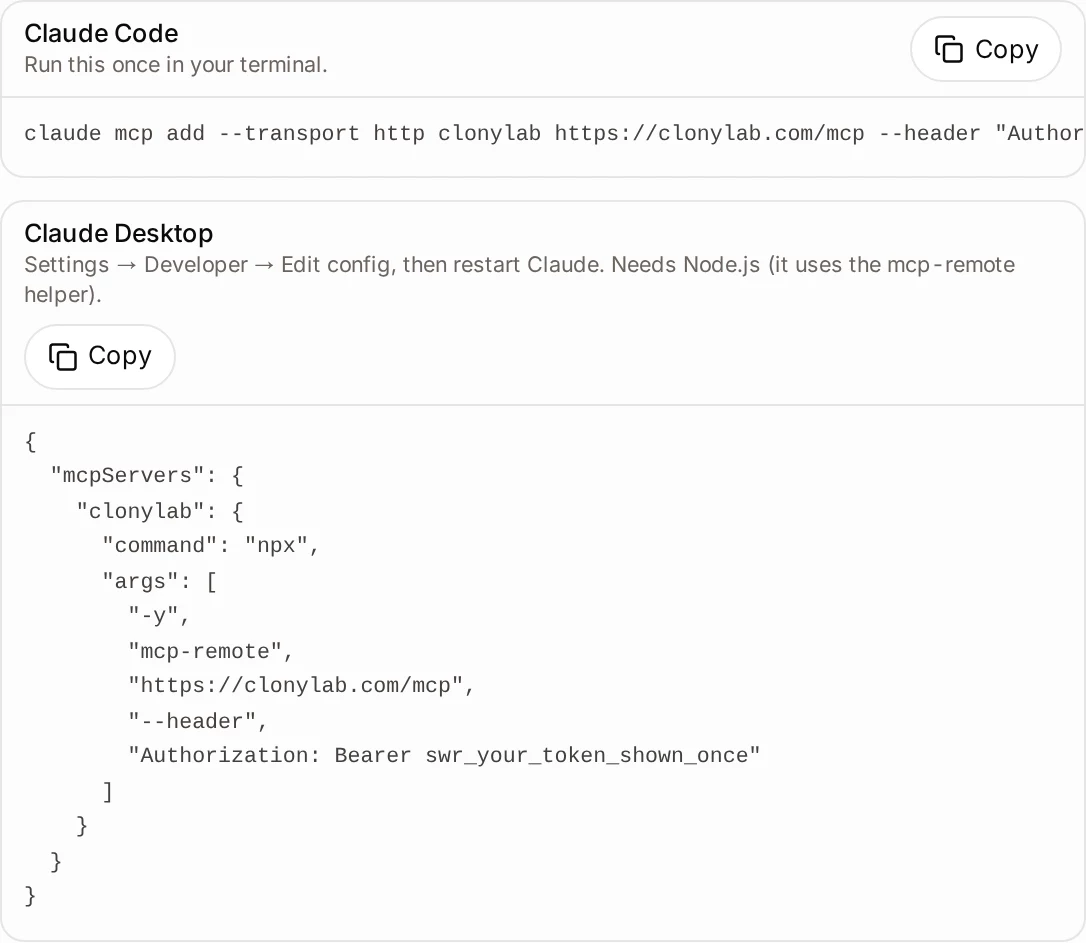
Claude Desktop needs Node.js, because it uses a small helper called mcp-remote. Any other tool that supports MCP only needs two values: choose “Streamable HTTP” and enter the address and the header Authorization: Bearer YOUR_TOKEN.
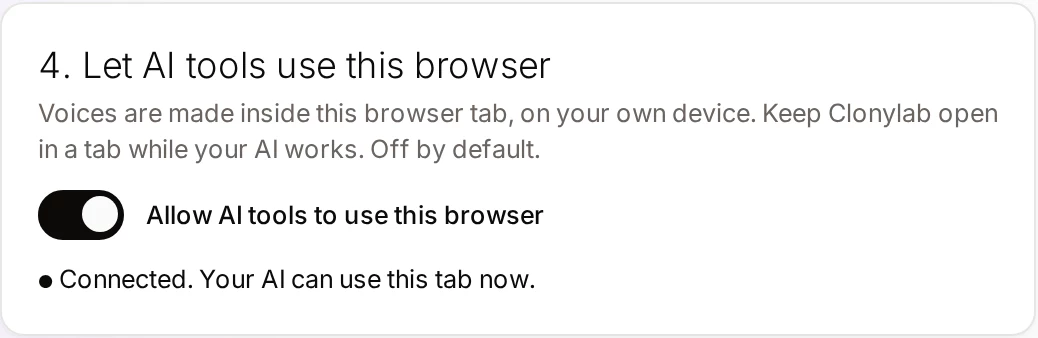
Let your AI use this browser
This switch is off by default. Turn it on and keep Clonylab open in a tab while your AI works.
Settings and file names change between versions of AI tools. If something looks different, tell your AI tool to “add a remote MCP server” and give it the address and the header from the Connector screen. Always check the screen in your account for the current values.
06Prompts that work with a text to speech MCP server
You do not need special words. A good prompt names the text, the voice or the accent, and what you want back. Here are five that map to real tools.
List the US female voices in Clonylab and show me their names.Uses list_voices.
Make a voice-over of the text below in a UK male voice, add a one-second pause after the first sentence, then give me the MP3 link.Uses generate_speech with a [pause 1s] tag, then get_audio.
Read this script in my cloned voice called Narrator, a little slower than normal.Uses list_cloned_voices and generate_speech. The clone must already exist in Clonylab.
How many characters did I make in the last 30 days, and which voices did I use most?Uses usage_summary.
Show my five newest voice-overs and tell me which one is the longest.Uses list_history. Ask for deletes only on purpose.
07What you need, and the honest limits
Here is what the server needs from you, and what it cannot do. We would rather tell you now than surprise you later.
| Topic | What to know |
|---|---|
| Plan | The AI connection is part of Pro and Team. The free trial does not include it. |
| Browser tab | Keep Clonylab open in a tab and switch on “Allow AI tools to use this browser”. Voices are made in that tab. |
| Language | English only, with US and UK voices. |
| Cloned voices | Your AI can list and use the clones you made. It cannot create one. A clone needs a recording that you make on the Clone screen. |
| Where things are kept | History and cloned voices stay in your browser and do not follow you to another device. |
| Size of one request | Up to 10,000 characters of text per generate_speech call. |
| Download links | An MP3 link from get_audio works for 30 minutes. |
| Your AI app | It must support remote MCP servers (Streamable HTTP) or have a custom connector screen. |
08Security: what your AI can and cannot touch
Giving an AI app access to a tool deserves a careful look. Clonylab keeps the controls in your hands.
- You approve the connection. With sign-in, a Clonylab page asks you to press Allow. With a token, you create it yourself.
- You can undo it. Remove an app from the list or delete a token, and that tool stops working.
- It is off by default. The browser switch stays off until you turn it on, and you can turn it off again whenever you like.
- Your own text is treated as data. The History tools tell your AI that saved scripts are data and not instructions, which helps against a script that tries to give orders.
Make one token per tool and name it after the tool and the computer. If a laptop is lost or you stop using an app, delete just that token.
Your AI tool sends commands through our server to your tab. The audio is made and stored in your browser, and it goes back to the AI only when the AI asks for a finished voice-over. Read the privacy policy for the full picture.
09Studio by hand, or the MCP server?
You do not have to pick one. The Studio is great for a single voice-over where you want to listen and adjust. The MCP server shines when your AI is already part of the job.
| Studio by hand | MCP server | |
|---|---|---|
| Best for | One voice-over you want to fine-tune | A voice-over that follows a script your AI is already writing |
| Setup | None, just sign in | A few minutes, once per AI tool |
| Plan | Trial, Pro or Team | Pro or Team |
| Needs the tab open | You are in it | Yes, and the browser switch must be on |
| Voices | 38 standard voices and your cloned voices | The same voices and your cloned voices |
Not sure which voices to try first? The standard voices page lets you hear all 38. The AI voiceover generator page explains the script tags in detail.
10Questions and answers
What is a text to speech MCP server?
It is a service that lets an AI app turn text into speech by calling tools through the Model Context Protocol. The AI reads a menu of actions, such as list voices or generate speech, and calls the one that fits your request.
Does Clonylab have an MCP server?
Yes. The address is https://clonylab.com/mcp. It offers 14 tools for voices, speech jobs, History, Studio settings and usage. It is part of the Pro and Team plans.
Which AI apps work with it?
Any app that supports remote MCP servers. The Connector screen has setup examples for Claude Code, Claude Desktop, Cursor, Codex CLI and Gemini CLI, and sign-in steps for apps with a custom connector screen, such as Claude and ChatGPT.
Do I have to keep Clonylab open?
Yes. The voice-over is made in your open Clonylab browser tab, on your own device. Keep the tab open and switch on Allow AI tools to use this browser while your AI works.
Can my AI clone my voice?
No. You create a clone yourself on the Clone screen from a recording. After that your AI can list your cloned voices and use them to read scripts in English.
Is it free?
You can start free with the Studio and cloning. The MCP connection needs a Pro or Team plan.
Ready to let your AI make the voice-overs?
Start free with the Studio and cloning, then add Pro when you want the AI connection. English only, no card to start.
Keep reading
Sources and further reading
- Model Context Protocol: introduction · The official explanation of MCP and what it is for.
- Model Context Protocol specification · The full technical rules that AI apps and servers follow.
- Connect Claude Code to tools via MCP (Anthropic) · How Claude Code adds remote MCP servers, including the claude mcp add command.
- mcp-remote (GitHub) · The helper that lets apps without remote support, such as Claude Desktop, use a remote MCP server.
- Model Context Protocol (Wikipedia) · A neutral overview of how MCP began and how it is used.
Last updated . The screenshots come from the Clonylab Connector screen, with the address and the token replaced by the real address and a placeholder. App and tool settings change often: if a step does not match your version, trust the Connector screen in your account.