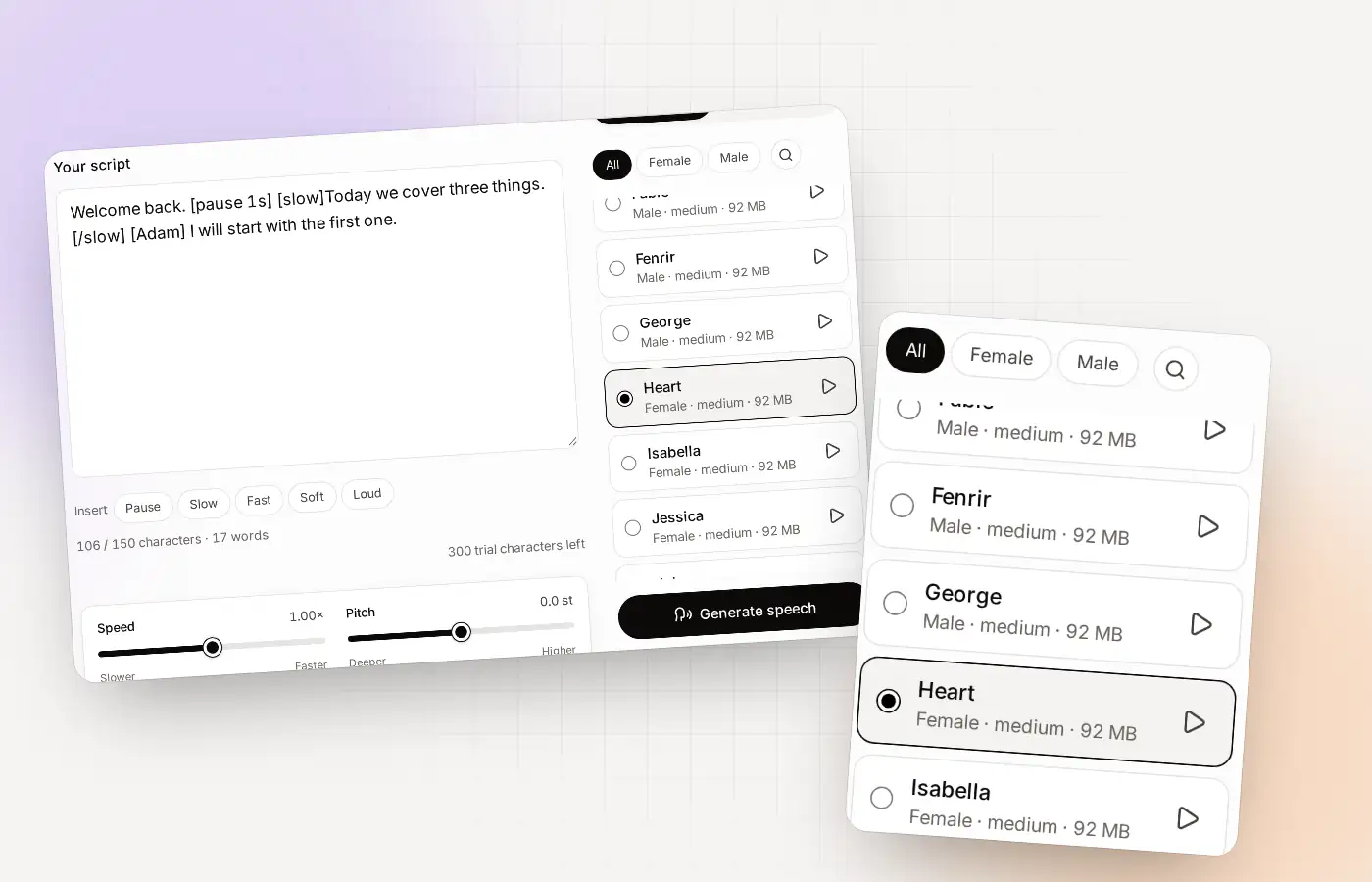
Text to speech MP3 at a glance
| File types | MP3 and WAV |
|---|---|
| Where it is made | In your browser, in your browser |
| Where it is saved | In your History, in your browser |
| Download all | A Download All button in the History |
| Voices | 38 English voices and your cloned voices |
| Free allowance | 300 characters, one time |
| Language | English only |
From text to MP3 in three steps
Write or paste the script
Open the Studio and paste your text. Add pause and style tags if you want to direct the reading.
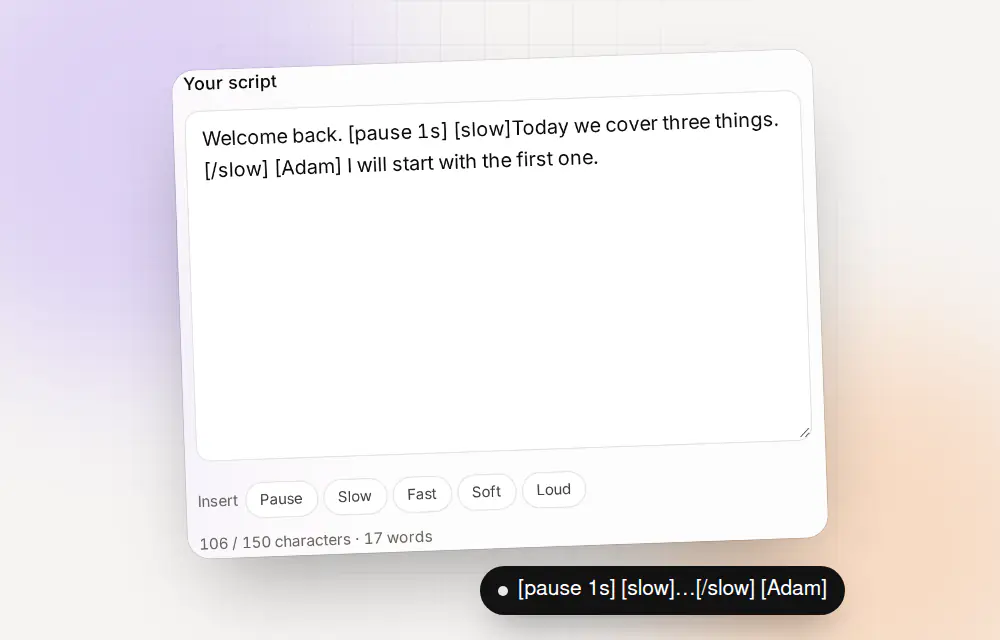
Tags go right inside your script. The buttons insert them for you. Choose a voice and generate
Pick one of the 38 voices or one of your clones, then press Generate speech. A task starts, and you can keep working.
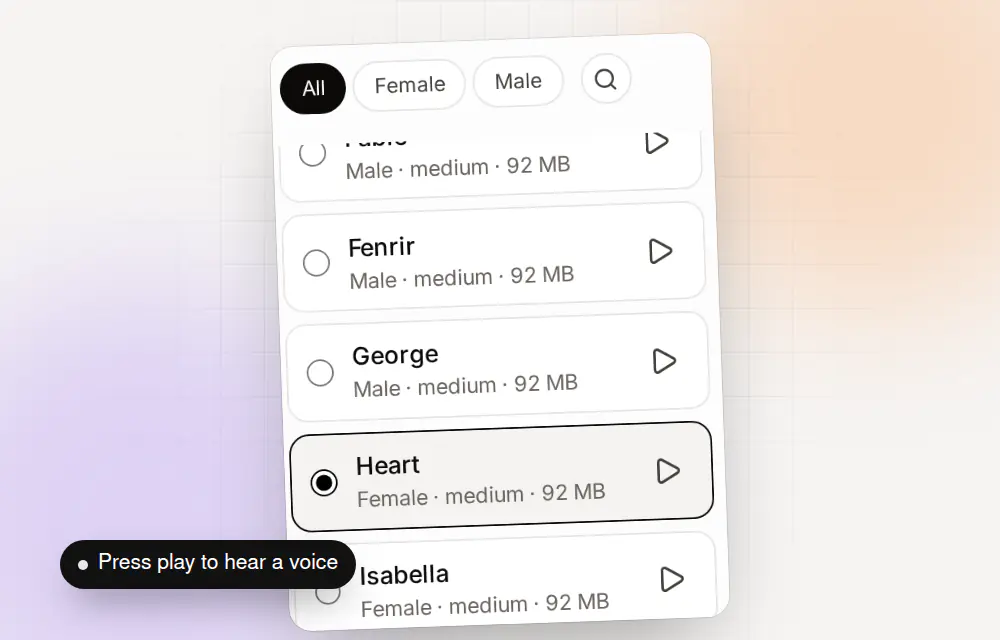
Filter the voices, press play to hear one, and pick it. Play it and download
The finished voice-over appears in your History. Press play to listen. Use the download button to get the MP3.
Each voice-over is its own task, so you can start the next one while the first is still finishing. That is handy when you have a list of scripts to turn into files.
Your MP3 files live in your History
You do not have to download a voice-over straight away. Everything you generate is kept in your History, in your browser, until you delete it. That is where you play, find and download your files.
| Action | How | Good to know |
|---|---|---|
| Play | Press the play button on the row | Plays the saved audio |
| Download one file | Use the download button and choose MP3 or WAV | The MP3 is the saved original |
| Download everything | Press Download All | For when you finish a batch |
| Search | Use the search button | Finds earlier voice-overs by their text |
| Delete | Use Delete | Removes files from your browser |
| Export and import | Export/Import Data | Needs Pro or Team |
Because History is stored in your browser, clearing your site data removes it. Download the files you care about.
- voice-over 3.mp3Play
- voice-over 2.mp3
- voice-over 1.mp3
MP3 or WAV: which should you download?
Clonylab makes an MP3 first. When you choose WAV, the app converts that MP3 into a WAV file. So both files carry the same sound. The difference is the container.
| MP3 | WAV | |
|---|---|---|
| What it is | The saved original | A WAV file made from the MP3 |
| File size | Small | Larger |
| Good for | Sharing, websites, video, podcasts | Editors and tools that only take WAV |
| Sound quality | The same | The same as the MP3 |
More on the second one in text to WAV.
Getting an MP3 that sounds good
- Choose the voice first. Press play on a sample, then pick it.
- Write for the ear. Short sentences read better aloud than long ones.
- Add pauses. Put [pause 1s] where a speaker would breathe.
- Slow the important words. Wrap them in [slow] and [/slow].
- Listen before you share. Play the whole voice-over once at normal speed.
There is a full list of tags on the AI voiceover generator page.
Ten scripts in one afternoon
MP3s usually come in batches. A set of video intros, a series of lessons, a list of product lines. Here is a workflow that suits Clonylab’s task queue.
| Step | What to do | Why |
|---|---|---|
| 1 | Write all ten scripts in a text file first | You can edit in a real editor |
| 2 | Choose one voice and one set of sliders | The set sounds like one series |
| 3 | Paste the first script, press Generate speech | The first one downloads the voice files |
| 4 | Paste the next and press Generate again straight away | Each is its own task, so they run one after another |
| 5 | Listen to each in the History | Fix problems by editing the script and generating again |
| 6 | Press Download All | You get the whole batch |
Batches need Pro or Team in practice, because the free plan has only 300 characters in total. See unlimited text to speech for what that covers.
Where your MP3 goes next
| Destination | What to do with the MP3 | Tip |
|---|---|---|
| A video editor | Drop the file onto the timeline | Use WAV if your editor prefers it |
| A podcast | Add it as an intro or an ad read | Say when audio is generated, if listeners could be misled |
| A website or app | Upload it and link to it | Check the voice licence for your use |
| A slide deck | Add the audio to a slide | Keep each file short |
| A phone greeting system | Use the file where it accepts audio | Check the system’s format needs |
If a download doesn’t work
| What happens | What to try |
|---|---|
| The download button does nothing | Allow downloads for clonylab.com in your browser settings, then try again |
| The file is missing from the History | Check that you are signed in to the same account and browser. History is stored in the browser you used |
| The History is empty after clearing data | Clearing site data removes History. Generate again, and download files you want to keep |
| The WAV is bigger than the MP3 | That is normal. WAV files are larger |
More help: contact us with your browser and what you saw.
Keeping your MP3 files organised
Once you make more than a handful of files, names and folders matter. The downloaded file name comes from your voice-over, so a little discipline before you generate saves time later.
| What | A good habit |
|---|---|
| Scripts | Number them in your text file: 01 intro, 02 steps, 03 outro |
| Voices | Use one voice per series, and note which one |
| Downloads | Put each batch in a dated folder |
| Backups | Copy finished files somewhere safe, because History lives in your browser |
| Versions | Change the script, generate again and keep the old file until you are sure |
What decides how your MP3 sounds
Three things shape the sound, in this order.
- The voice. Different voices have different tone and pace, so choose first.
- The script. Short, clear sentences with natural pauses make the biggest difference.
- The settings. The sliders and tags fine-tune speed, pitch, pauses and volume.
Then listen once before you download. If a name is read oddly, respell it the way it sounds and generate again. You can read more about directing a reading on the AI voiceover generator page.
A quality checklist before you publish
- Listen all the way through. Play the whole voice-over once, at normal volume.
- Check names and numbers. Respell anything that sounds wrong and generate again.
- Check the ends. The first and last words should not be cut or rushed.
- Match the volume. Use the Volume slider so the audio sits well with your music or video.
- Keep a copy. Download the file, and keep your script next to it.
These five checks take about a minute and catch almost every problem.
Where to go next
- Direct the reading with pauses and style tags.
- Choose a voice from the 38 English voices.
- Understand WAV files on the text to WAV page.
Questions about text to speech MP3
How do I convert text to an MP3 with Clonylab?
Open the Studio, paste your text, pick a voice and press Generate speech. When it is ready, download it as an MP3 from your History.
Is text to speech MP3 free on Clonylab?
You can start free with a one-time allowance of 300 characters. MP3 and WAV downloads are included.
Where are my MP3 files stored?
In your History, in your browser. They are not uploaded to our servers.
Can I download all my voice-overs at once?
Yes. The History has a Download All button.
How long can a script be?
On the free plan, up to 150 characters per script. Pro and Team have no script limit.
Can I make MP3s with my own cloned voice?
Yes. Pick Cloned in the Studio and choose your voice.
Do I need to install software?
No. Clonylab runs in your browser. The first use of a voice downloads that voice’s files.
Can I rename the file?
You can rename a downloaded file on your computer like any other file.
Do I lose my MP3 files if I close the tab?
No. They stay in your History, in your browser, until you clear your site data. Download the ones you want to keep.
Make your first MP3
Make a free account, generate a voice-over and download it as an MP3.
Sources and further reading
- MP3 (Wikipedia) · How MP3 compression works and what it trades away.
- Kokoro-82M model card (Hugging Face) · The voice model Clonylab’s standard voices run on, with its Apache 2.0 licence.
Written and checked by the Clonylab team. Last updated . The screenshots were taken from the Clonylab app on that date. Read how we work on the About page, or contact us if something on this page is wrong. See also the Terms, Privacy policy and Voice licences.