Text to WAV at a glance
| How WAV is made | Converted from the MP3 when you press download |
|---|---|
| Sound quality | The same as the MP3 |
| File size | Larger than the MP3 |
| Where | The download menu in your History |
| Cost | WAV and MP3 are included on every plan, including free |
| Language | English only |
What the WAV really is
Here is the plain version. Clonylab makes your audio as an MP3. When you ask for a WAV, the app takes the saved MP3 and converts it into a WAV file in your browser. Nothing is made again, and nothing is sent to a server.
So the WAV does not add sound quality that the MP3 lacks. What it gives you is a file type. Many editors, DAWs, phone systems and older tools take WAV files without a fuss, and WAV does not need to be decoded again when you edit it.
| MP3 | WAV | |
|---|---|---|
| Made | First, when you generate | On download, from the MP3 |
| Sound | The original output | The same as the MP3 |
| Size | Small | Larger |
| Editing | Works in most tools | Works in every tool that accepts WAV |
| Sharing | Easier, because it is small | Heavier to send |
When WAV is the right choice
| Situation | Why WAV helps |
|---|---|
| Your editor only takes WAV | It opens without conversion |
| You edit the audio a lot | WAV does not re-compress when you save |
| A phone or kiosk system needs WAV | Many such systems expect it |
| A client asks for WAV | You can deliver the file type they ask for |
| You just want to share the audio | MP3 is smaller. Use MP3 |
- Your editor only takes WAV
- You edit the audio a lot
- A phone or kiosk system needs WAV
- A client asks for WAV
How to download a WAV
Generate your voice-over
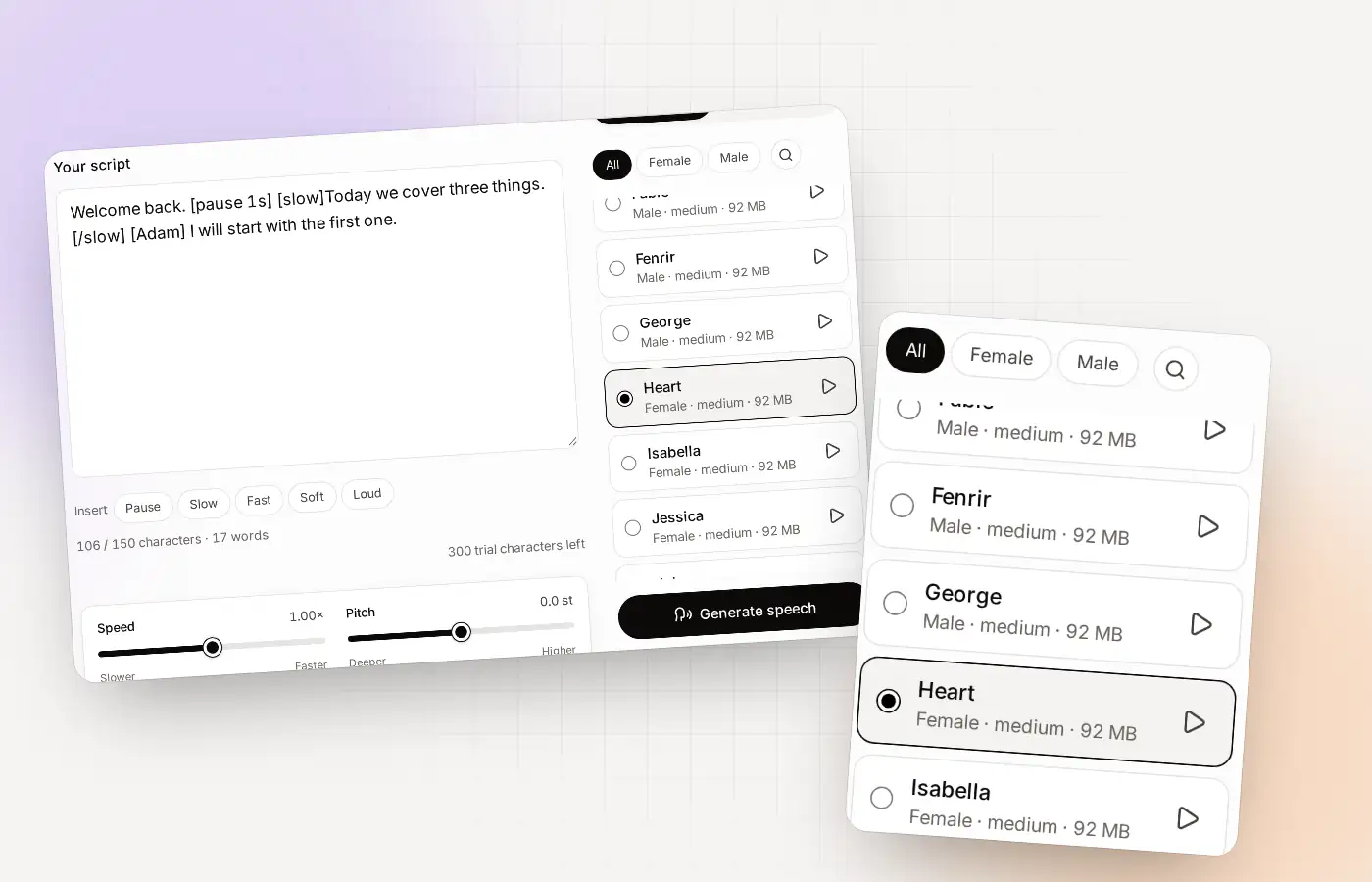
In the Studio, pick a voice, paste your script and press Generate speech.
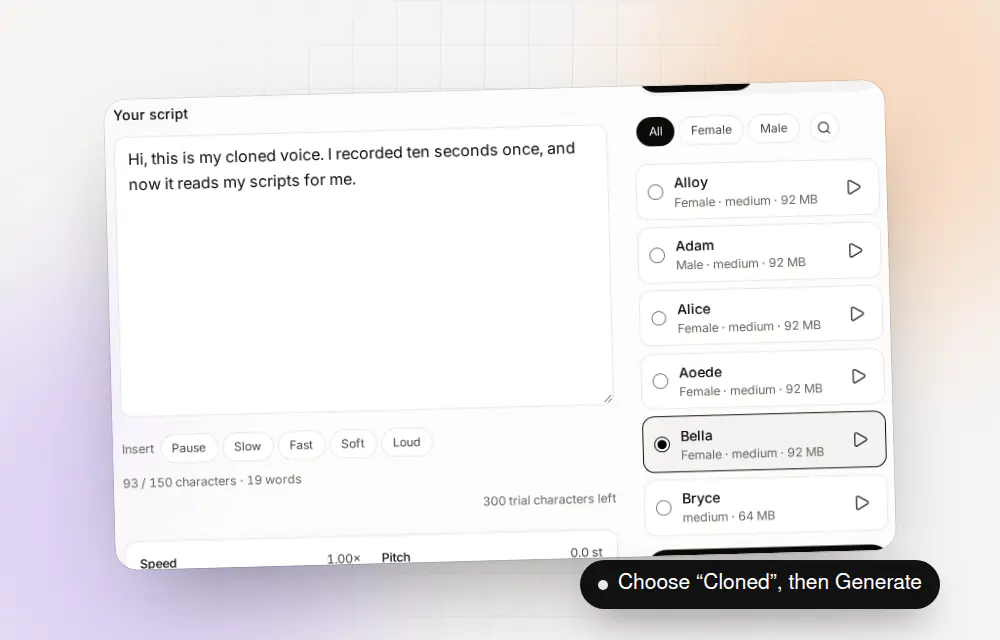
Choose a voice and press Generate speech. Open your History
When the task finishes, the voice-over appears in your History, in your browser.
Choose WAV from the download menu
Press the download button on the row. A small menu offers MP3 and WAV. Choose WAV.
Want everything at once? Download All gets your whole History. See text to speech MP3 for how History works.
File size, in plain words
WAV files are bigger than MP3 files because they are not compressed the same way. A voice-over that is a small MP3 can be several times larger as a WAV. That matters when you email files or keep many of them.
- Keep MP3s as your archive. They are small.
- Make WAV only when a tool needs it. You can always convert again from History.
- Delete WAVs after use. Your browser keeps the MP3.
From script to edited video: the whole path
| Step | Where | What happens |
|---|---|---|
| 1 | Studio | Write the script, pick a voice, press Generate speech |
| 2 | History | Listen. Fix the script and generate again if needed |
| 3 | History | Download the WAV |
| 4 | Your editor | Place the WAV on the audio track |
| 5 | Your editor | Add music, trim and export the video |
If you work on many videos, queue the scripts as tasks and collect the finished files from your History. The text to speech online page explains the queue.
Keeping WAV files tidy
- Archive the MP3, not the WAV. The MP3 is the original and is much smaller.
- Name files by project and script number.
- Delete a WAV once the project ships, because you can make it again from History.
- Back up final files outside your browser.
Questions editors ask about your WAV
| Question | Answer |
|---|---|
| Is it mono or stereo? | Clonylab does not offer a choice. Check the file in your editor if you need to know |
| Can I change the sample rate? | Not in Clonylab. Convert it in your editor if a project needs a specific rate |
| Will it match my other audio? | Use the Volume slider in Clonylab, and balance it in your editor |
| Can I remove background noise? | There is none. The voice is generated, not recorded |
The short version
- How it works: Clonylab makes an MP3 and converts it to WAV when you download.
- Sound: the same as the MP3.
- Size: WAV is larger.
- Use WAV when your tool needs it. Use MP3 to share.
- Both are included on every plan, including free.
If a client asks for “lossless”, tell them the audio is generated speech that was made as an MP3 first. Being open about it protects both of you.
Where to go next
- Make a voice-over: text to speech online.
- Direct the reading: AI voiceover generator.
- Check the licence for business use: commercial use.
Using your WAV in an editor
You can open a Clonylab WAV in any audio or video editor that accepts WAV, which is nearly all of them. A few habits make the file easier to work with.
| Task | What to do | Tip |
|---|---|---|
| Add to a video | Drop it on the audio track under your picture | Match the start of the audio to the first frame you want |
| Trim | Cut silence at the start and end | Keep a short lead-in so words do not clip |
| Balance volume | Match the level to music and effects | You can also set the Volume slider before generating |
| Add music | Place the music on a separate track and lower it under the voice | Keep the voice clear |
| Export | Save in the format your project needs | The source is generated speech, so a very high-quality export gives no extra detail |
Is a WAV from Clonylab “lossless”?
A WAV file itself does not compress audio, so converting it again does not lose anything. But this WAV starts as an MP3, so it carries whatever the MP3 already left out. That does not make it poor. For spoken voice, a good MP3 sounds clean. It does mean we should not call it master-grade source audio.
| They ask | You can say |
|---|---|
| Is it uncompressed? | The file is WAV, but it was made from an MP3 |
| Is it studio quality? | It is generated speech of good quality for voice-over use |
| Can you send a 48 kHz file? | Clonylab does not offer a choice of sample rate. Ask your editor to convert if a project needs one |
| Can you send an MP3 too? | Yes, both files are available |
MP3 or WAV: a quick decision
- Sharing, uploading, emailing: choose MP3.
- Putting it into a tool that only accepts WAV: choose WAV.
- Editing a lot: choose WAV so the tool does not decode MP3 each time.
- Not sure: download both. You can delete the one you do not need.
More about the basics of downloads on text to speech MP3.
If the WAV doesn’t work
| What happens | What to try |
|---|---|
| The WAV option is missing | Open the download menu on the History row, and choose WAV from it |
| The WAV will not open in my tool | Try another player first. If it still fails, tell us your tool and browser |
| The WAV is silent | Play the MP3 in your History. If that works, download the WAV again |
| The download is slow | WAV files are larger. Wait, or use the MP3 |
Still stuck? Contact us with your browser and the tool you use.
Questions about text to WAV
Can I download text to speech as WAV?
Yes. In your History, press the download button on a voice-over and choose WAV.
Is the WAV better quality than the MP3?
No. Clonylab makes an MP3 and converts it to WAV on download, so the sound is the same. WAV only changes the file type.
Why is the WAV file so much bigger?
WAV is not compressed the way MP3 is, so the same audio takes more space.
Is WAV available on the free plan?
Yes. MP3 and WAV downloads are included on every plan.
Is the WAV made on my device?
Yes. The conversion happens in your browser, and no file is sent to our servers.
Can I get a WAV of my cloned voice?
Yes. A voice-over made with a cloned voice downloads the same way, as MP3 or WAV.
Can I get a WAV of a whole batch?
Download each voice-over as WAV from its row in the History. Choose the format on each download.
Does WAV change how my voice-over sounds?
No. The WAV is made from the MP3, so the sound is the same.
Sources and further reading
- WAV (Wikipedia) · What is inside a WAV file and why it is large.
- MP3 (Wikipedia) · How MP3 compression works and what it trades away.
Written and checked by the Clonylab team. Last updated . The screenshots were taken from the Clonylab app on that date. Read how we work on the About page, or contact us if something on this page is wrong. See also the Terms, Privacy policy and Voice licences.