
The short answer
To add text to speech to Codex CLI, create a token on Clonylab’s Connector screen, export it as CLONYLAB_TOKEN and add an mcp_servers.clonylab block with the url https://clonylab.com/mcp and bearer_token_env_var to ~/.codex/config.toml. Codex then gets 14 voice tools. Keep your Clonylab tab open. It needs Pro or Team.
Key takeaways
- Add an [mcp_servers.clonylab] block to ~/.codex/config.toml with url https://clonylab.com/mcp and bearer_token_env_var.
- Keep the token in an environment variable, so config.toml never holds it.
- Codex gives a tool call 60 seconds by default. Raise tool_timeout_sec for long scripts.
- The voice-over is made in your open Clonylab tab, so keep it open with the browser switch on.
- The AI connection is part of Pro and Team. It is English only, and Codex cannot create a cloned voice.
01What you get with Codex CLI text to speech
Codex is OpenAI’s coding agent. It runs in your terminal, reads your project and does tasks on request. Like other agents, it works with text and files. Connect a text to speech MCP server and it can also turn a script into speech and save the MP3 beside your code.
Clonylab gives Codex 14 tools: list voices, make a voice-over, watch the job, search your History and fetch the MP3. The tools are the same in every app, and our guide to the text to speech MCP server explains them. This guide is the Codex version, with the config.toml block and one setting that matters for longer scripts.
Codex has an unusual strength for this job. It is happy to run a long chain of steps on its own, such as “read these ten files, write ten scripts, make ten voice-overs and list the results.” That is exactly what the Clonylab tools are good at.
02Before you start
| Need | Details |
|---|---|
| Codex CLI | Installed and signed in. The desktop app, the CLI and the IDE extension share one config file |
| A Clonylab plan | The AI connection is part of Pro and Team |
| A token | Made on the Connector screen. It starts with swr_ and is shown once |
| An open Clonylab tab | Voices are made in your browser tab, so keep it open |
Codex stores MCP servers in ~/.codex/config.toml. A project can add its own .codex/config.toml, but Codex reads that file only in projects you trust. Keep your Clonylab block in the file in your home folder.
03Add Clonylab to Codex in 4 steps
Create a token
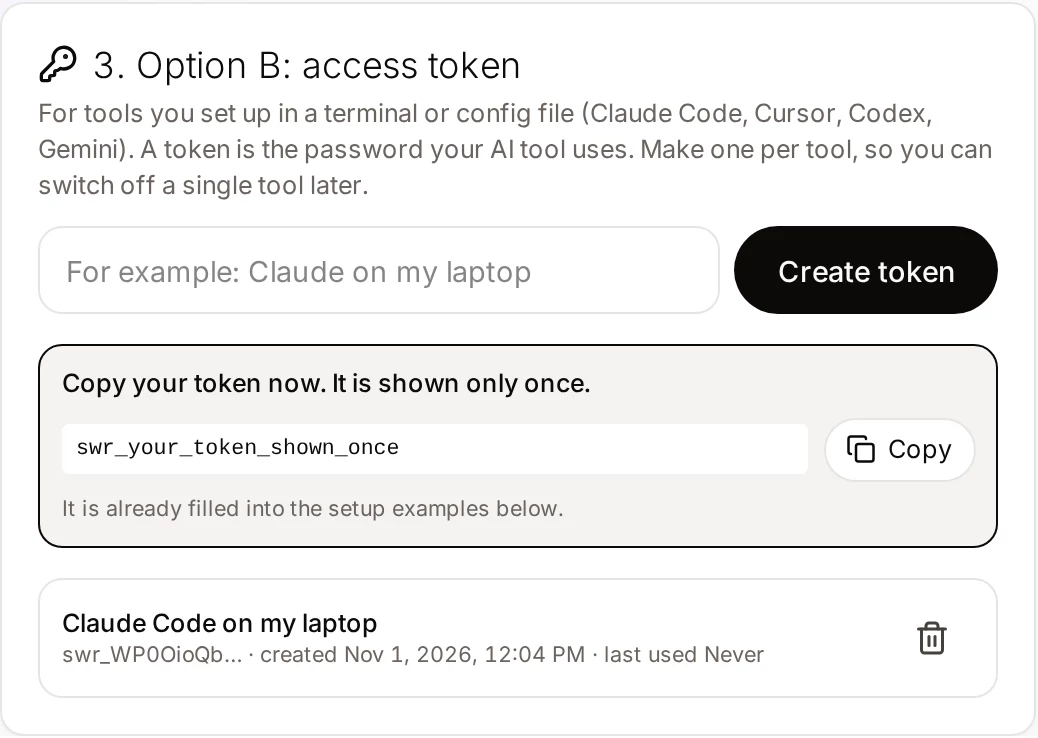
Open Connector in your Clonylab account, name a token “Codex on my laptop” and copy it. You can have up to 10 tokens, one per tool.
Put the token in an environment variable
Codex can read a bearer token from a variable, so the token never has to be written in the file. Add this line to your shell profile, or run it in your terminal, with your own token.
export CLONYLAB_TOKEN="YOUR_TOKEN"Add the block to config.toml
Open ~/.codex/config.toml and add this block.
[mcp_servers.clonylab]
url = "https://clonylab.com/mcp"
bearer_token_env_var = "CLONYLAB_TOKEN"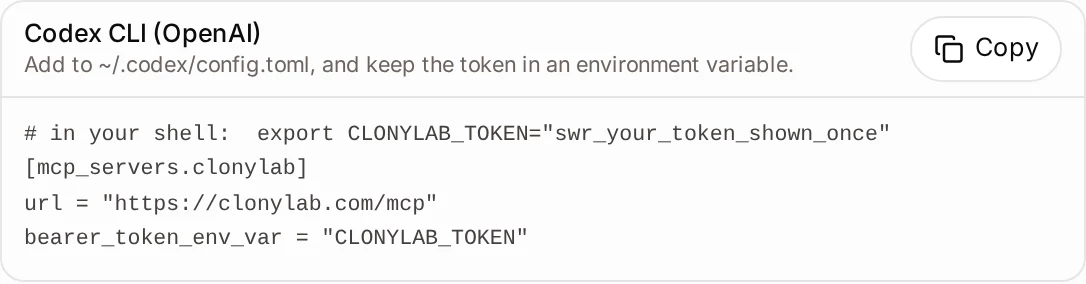
Allow your browser tab
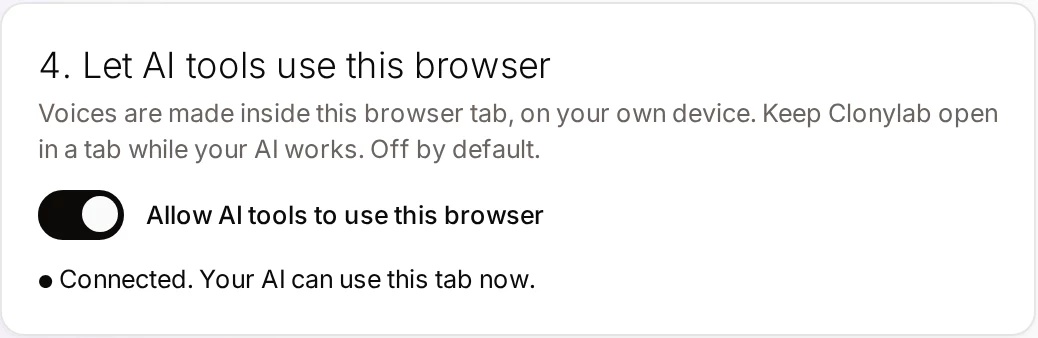
Switch on Allow AI tools to use this browser in Clonylab and keep the tab open. Then start Codex from the same terminal, so it can see the variable.
04The block, line by line
Codex’s documentation lists a few more options that are useful here. http_headers sends fixed headers, env_http_headers reads header values from variables, and enabled = false switches a server off without deleting it. You do not need any of them for Clonylab.
A project can also hold a .codex/config.toml with its own servers, for example one that only that project needs. Codex reads that file only in trusted projects, which protects you from a stranger’s repository adding servers without you knowing. For Clonylab, keep the block in your home file. Then every project can use it, and the token stays out of any repository.
You can check what Codex loaded with codex mcp list. It lists the servers you set up. If you ever prefer signing in instead of a token, codex mcp login starts an OAuth login for servers that support it.
05One setting for long scripts: the tool timeout
Codex gives each tool call 60 seconds by default. Clonylab’s generate_speech waits up to 45 seconds for a result unless the agent asks for a different wait, and it can wait up to 100 seconds. If Codex cuts the call off at 60 seconds, a long script may look like a failure even though the job is still running in your tab.
You have two easy fixes. Ask Codex to check the job again with get_job, or raise the limit in the block:
[mcp_servers.clonylab]
url = "https://clonylab.com/mcp"
bearer_token_env_var = "CLONYLAB_TOKEN"
tool_timeout_sec = 120
Large batches are the most likely place to hit the 60-second limit, so set the longer timeout before you start one.
| Setting | Where | Default | What it does |
|---|---|---|---|
startup_timeout_sec | Codex | 10 seconds | How long Codex waits for the server to answer when it starts |
tool_timeout_sec | Codex | 60 seconds | How long one tool call may run |
wait_seconds | Clonylab tool | 45 seconds | How long generate_speech waits for the result; up to 100 |
| Download link | Clonylab | 30 minutes | How long a get_audio link works |
06Your first voice-over from Codex
Start Codex in a project folder. Ask for something small first.
Check that Clonylab is connected and list the UK male voices.Uses connection_status and list_voices.
Read docs/overview.md and write a 40-second narration. Make it in a calm US female voice and save the MP3 as audio/overview.mp3.Uses generate_speech, get_job and get_audio, then a download command.
For every file in scripts/, make a voice-over in the same voice and list the MP3 names when you finish.A batch run. The tab makes them one after another.
Show my last five voice-overs and delete none of them.Uses list_history. Say it plainly when you do not want a delete.
07Keep your token safe
The variable route already helps. The token is not in config.toml, so you can back up or share that file without sharing the token. Keep these habits too.
08If something goes wrong
| What you see | Likely cause | What to do |
|---|---|---|
| The server does not appear in codex mcp list | The block is in the wrong file or has a typo | Check the table name and that the file is in ~/.codex |
| Unauthorized | The variable is empty or the token was deleted | Run echo $CLONYLAB_TOKEN in the same terminal, then make a new token if needed |
| The call times out but the clip is made | The tool timeout is shorter than the wait | Raise tool_timeout_sec or ask Codex to run get_job |
| Codex says no browser tab is connected | Clonylab is closed or the switch is off | Open Clonylab and switch on “Allow AI tools to use this browser” |
| It worked in one terminal only | The variable was set in that terminal only | Put the export line in your shell profile |
We took the config file path, the fields and the timeout defaults from OpenAI’s Codex documentation on 1 November 2026, and the Clonylab block from our own Connector screen. Codex changes quickly. If a field name differs in your version, run codex mcp --help.
09Limits, and when to use the Studio
| Topic | What to know |
|---|---|
| Plan | Pro or Team |
| Language | English only, with US and UK voices |
| One request | Up to 10,000 characters per generate_speech call |
| Browser | The Clonylab tab must stay open |
| Cloned voices | Codex can use your clones, not create them. See voice clone MCP |
| Download links | An MP3 link works for 30 minutes |
The Studio stays the best place for one clip that you want to hear and tune. Codex is the better place when voice-overs come out of a larger task. If you also use other agents, our guides for Gemini CLI and Claude Code show the same server in their formats. The pauses page lists the script tags.
10Questions and answers
How do I add an MCP server to Codex CLI?
Add a table named mcp_servers.<name> to ~/.codex/config.toml with the server url. For Clonylab the url is https://clonylab.com/mcp, and bearer_token_env_var names the variable that holds your token.
Where is the Codex config file?
It is ~/.codex/config.toml. A project can also have .codex/config.toml, but Codex reads it only in trusted projects. The desktop app, the CLI and the IDE extension share the file.
Why is my voice-over call timing out?
Codex gives each tool call 60 seconds by default. Raise tool_timeout_sec in the block, or ask Codex to check the job again with get_job.
Do I have to keep Clonylab open?
Yes. The voice-over is made in your open Clonylab browser tab on your own device. Keep the tab open and the browser switch on.
Can Codex clone my voice?
No. You create a clone yourself on the Clone screen. After that Codex can list your cloned voices and use them to read English scripts.
Is it free?
The free trial lets you try the Studio and cloning. The AI connection that Codex uses is part of the Pro and Team plans.
Ready to let your AI make the voice-overs?
Start free with the Studio and cloning, then add Pro when you want the AI connection. English only, no card to start.
Keep reading
Sources and further reading
- Model Context Protocol in Codex (OpenAI) · The config.toml path, the mcp_servers fields, the timeouts and the codex mcp commands.
- Model Context Protocol: introduction · The official explanation of MCP and what it is for.
- Model Context Protocol specification · The rules that AI apps and servers follow, including the HTTP transport.
- Model Context Protocol (Wikipedia) · A neutral overview of how MCP began and how it is used.
Last updated . The screenshots come from the Clonylab Connector screen, with the address and the token replaced by the real address and a placeholder. App and tool settings change often: if a step does not match your version, trust the Connector screen in your account.